
Business Problem
Generating complex but easy to remember passwords periodically due too policy requirements is stressful for users.
Why?
- Due to ever increasing security concerns and risks, users need to create complex and unbreachable passwords
- There are password generators, but they create complex and gibberish passwords, which are difficult to remember
- Remembering such complex passwords are next to impossible and storing them in form of notes is highly risky
What?
- I wanted to build a password generator, which creates complex passwords but without the need to remember or write them anywhere
- As a solution I built a utility which will convert secret phrases into complex passwords, such that the user just needs to remember the phrases instead of password
How does it work?
The users don’t need to remember the passwords, rather think of a phrase and provide it to the prompt. The Password generator parses the phrase and quickly transforms it into a strong and complex password which is a combination of alphabets, numbers and special characters. The user can copy and paste this generated password into the change password field. The users don’t need to remember this generated complex password, rather re-enter the same phrase again into the prompt and regenerate the same password. This way they need not save it anywhere and so avoid the risk of being stolen.
Steps To Generate the Password
Step 1 - Launch the application
The application can be accessed through https://encodeme.dhayfule.com/ and can also be installed as native application on PCs and Android Devices.
The Interface
Encode Me is a simple, light weight and single page application whiich presents a prompt to provide the phrase that needs to be transformed into a complex password.
Step 2 - Generating the Password
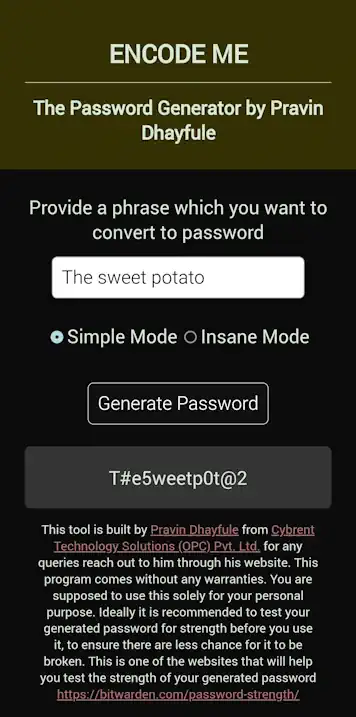
The adjoining screenshot resembles the application.
The steps
- There is only one textbox which is the prompt to provide the easy to remember secret phrase. In the example we have used “The Sweet Potato”
- There are two modes viz. Simple and Insane
- The Simple mode is more than enough to generate strong password, however if you want to make it more comples, you can try Insane Mode
- Once you have provided the phrase, click Generate Password
- The generated password as you can see is printed in the patch below the button, which you can copy and paste it into the password field of the application where you want to set the password
Note: Keep the first character of the phrase in upper case just like in sentences. Avoid the phrases shown in the tutorial video and the screenshot as they are already exposed. Dont forget to check the complexity of the generated password through the link provided in the statement below the generated password.
Step 3 - Install as Application (Optional)
This is a web application, which can be installed on PC and Android devices as native applications. Ideally you will bbe prompted to do so by the browser as soon as you launch it. However even if you skip it in the first instance, you can stil install it by clicking the Install button at the bottom of the screen.
Security Considerations
While building this application, I have taken utmost care of following security practices and protocols. This application is completely a client side application, which doesnt store any user information including the passwords and the secret phrases. This application is not connected to a backend database and so everything happens on the browser. On refreshing the page or closing the browser, all the information gets lost.
The password generation happens dynamically through a secured client side script. So you need not worry about the secrecy, until and unless you disclose it or use it while someone else is gazing your screen.